Blueprints and Agents
Objective
Design, visualize, and deploy standardized infrastructure templates across your environments.
The Blueprint Builder allows you to design and deploy infrastructure templates.
AI-Assisted Builder
The Blueprint Builder uses an AI agent to help you design infrastructure templates. Instead of writing complex code from scratch, you describe what you want in plain English.
How it Works
- Define Objective: Start by describing your goal (e.g., "Create a highly available ECS cluster with an Application Load Balancer").
- Generate Skeleton: The AI analyzes your request and proposes a "Skeleton Plan" broken down into phases:
- Assessment: Checks prerequisites and current state.
- Configuration: Defines the resources and settings.
- Validation: Ensures the design meets best practices.
- Refine and Customize: Use the Plan Builder Assistant chat to refine tasks, add notes, or change deployment methods (CloudFormation or CLI).
- Finalize: Once satisfied, the builder generates the executable blueprint.
Key Capabilities
- Chat Interface: Interact with the AI to iterate on your design.
- Phased Approach: Structured plans ensure no steps are missed.
- Permission Calculation: Automatically identifies the IAM permissions required to deploy the blueprint.
- Deployment Options: Support for standard CloudFormation stacks or CLI-based deployments.
To access it:
- Click on Blueprints & Agents in the left sidebar.
- Click Create Blueprint to start a new design.
Running a Blueprint
To execute an existing blueprint:
- Navigate to Blueprints & Agents > My Blueprints.
- Find the blueprint you want to run.
- Click Run Blueprint.
- Select the target environment.
- Review the execution plan.
- Click Execute to deploy.
Tip: You can also run blueprints directly from recommendations by clicking the "Remediate" button.
Agent History
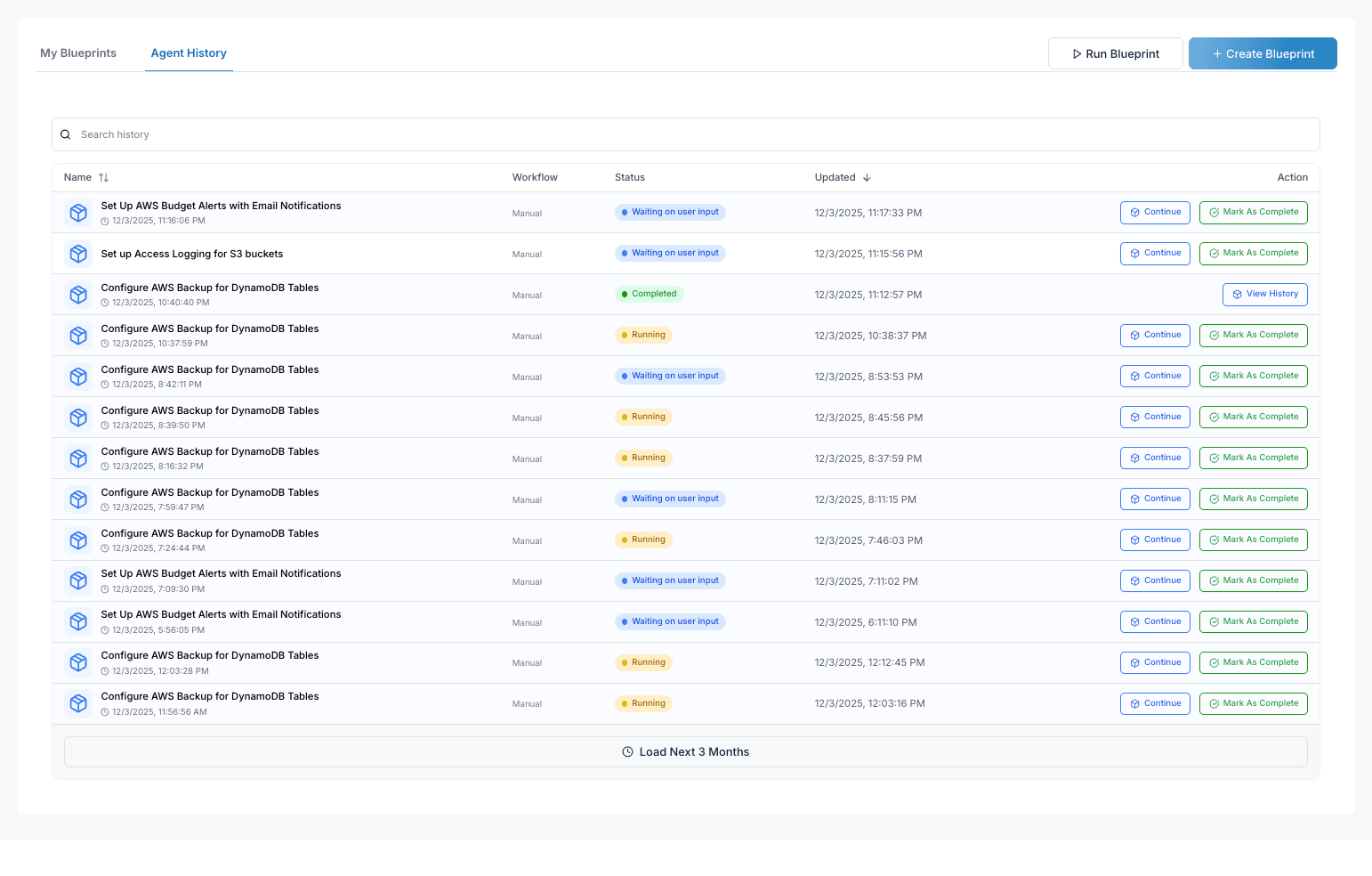
The Agent History tab shows the status and results of all blueprint executions and agent activities.
Viewing Agent History
- Navigate to Blueprints & Agents.
- Click on the Agent History tab.
- View all past and current agent executions.
Agent Status
Each agent execution displays:
| Status | Description |
|---|---|
| Completed | Successfully finished all steps |
| Running | Currently executing |
| Waiting on user input | Paused, awaiting your approval |
| Failed | Encountered an error |
Agent Details
Click on any agent entry to view:
- Execution Timeline: Step-by-step progress
- Logs: Detailed output from each action
- Resources Modified: What was created, updated, or deleted
- Errors: Any issues encountered
Managing Running Agents
For agents that are running or waiting:
- Continue: Resume execution after reviewing
- Mark As Complete: Manually mark as finished
- View History: See detailed execution logs
Human-in-the-Loop: Agents will pause and request your approval before making state-changing operations in your AWS environment.
Searching Agent History
Use the search bar to find specific executions:
- Search by blueprint name
- Filter by status
- Filter by date range