My Workflows
Objective
Create, manage, and monitor automated workflows that execute recurring cloud operations.
My Workflows allows you to automate repetitive tasks, schedule operations, and create multi-step processes that run without manual intervention.
Accessing Workflows
Navigate to My Workflows in the sidebar to view and manage your automated tasks.
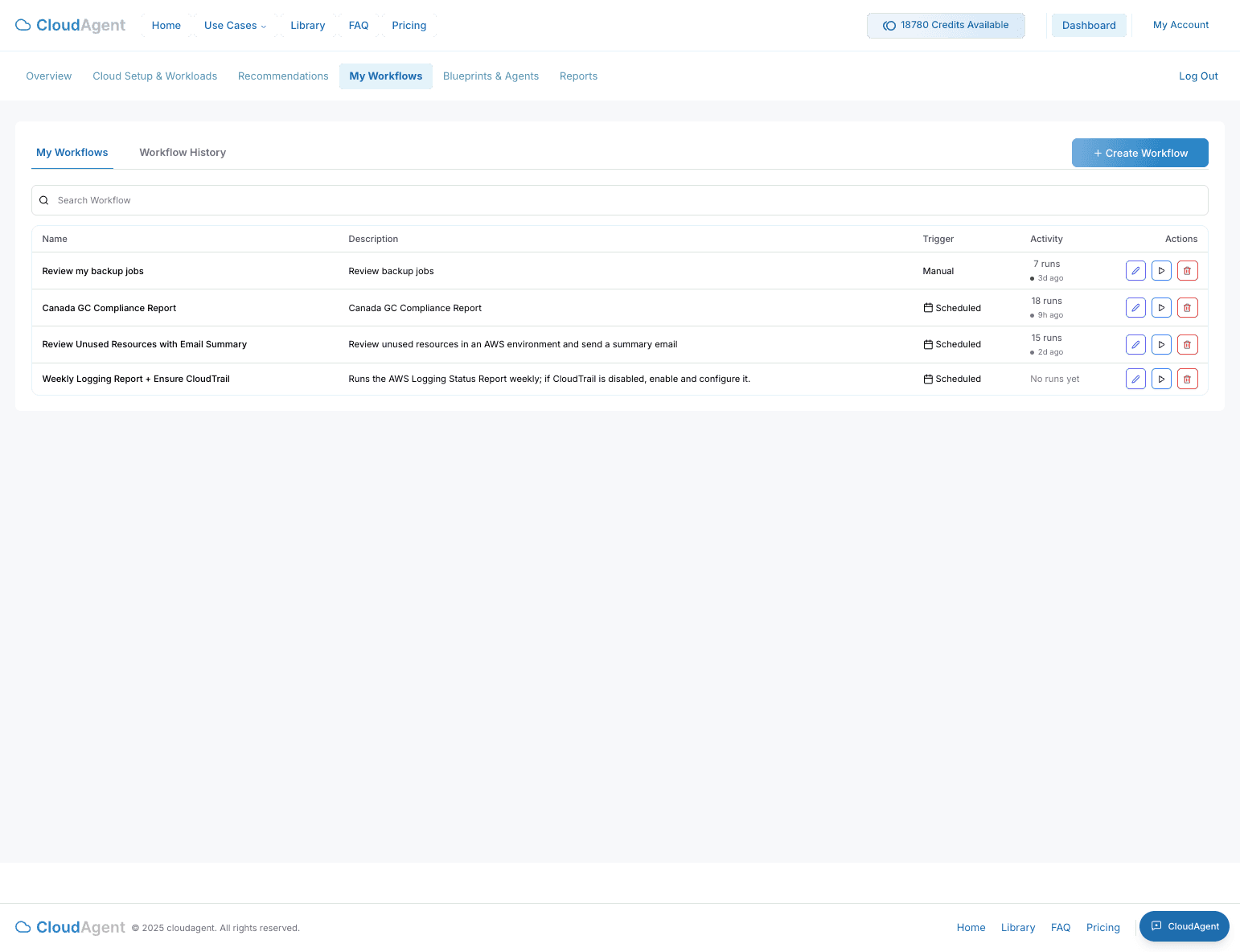
Understanding Workflows
A workflow is an automated sequence of actions that can:
- Run on a schedule (daily, weekly, monthly)
- Execute multiple steps in order
- Pause for human approval when needed
- Notify you of results
Workflow Types
Manual Workflows
Triggered on-demand when you need them:
- One-time cleanup operations
- Ad-hoc security scans
- On-demand backups
Scheduled Workflows
Run automatically at specified intervals:
- Daily backup verification
- Weekly compliance checks
- Monthly cost reports
Event-Driven Workflows
Triggered by specific conditions:
- New resource detection
- Security finding alerts
- Threshold breaches
Creating a Workflow
- Navigate to My Workflows.
- Click + Create Workflow.
- Choose a template or start from scratch.
- Configure the workflow steps:
- Action: What the workflow should do
- Target: Which resources or environments
- Schedule: When it should run
- Notifications: Who to alert
- Click Save to create the workflow.
Templates: CloudAgent provides pre-built workflow templates for common operations like backup verification, security scanning, and cost optimization.
Workflow Status
| Status | Description |
|---|---|
| Active | Workflow is running on schedule |
| Paused | Temporarily disabled |
| Waiting on User | Requires your approval to continue |
| Completed | Finished execution successfully |
| Failed | Encountered an error |
| Running | Currently executing |
Managing Workflows
Pause a Workflow
Click the Pause button to temporarily stop a scheduled workflow without deleting it.
Resume a Workflow
Click Resume to reactivate a paused workflow.
Edit a Workflow
Click on the workflow name to modify its configuration, schedule, or steps.
Delete a Workflow
Remove workflows you no longer need from the workflow list.
Workflow Actions
Common actions available in workflows:
Infrastructure Operations
- Configure AWS Backup: Set up backup policies for DynamoDB tables
- Enable S3 Versioning: Turn on versioning for S3 buckets
- Update Security Groups: Modify firewall rules
Compliance and Security
- Run CIS Benchmarks Report: Generate compliance assessment
- Scan for Public Access: Check for publicly exposed resources
- Audit IAM Permissions: Review access policies
Cost Management
- Run Unused Resources Report: Find idle resources
- Check Reserved Instance Coverage: Optimize RI utilization
- Generate Cost Report: Create spending analysis
Human-in-the-Loop
For sensitive operations, workflows can pause and wait for approval:
- Workflow reaches an approval step.
- You receive a notification.
- Review the proposed action in the dashboard.
- Click Continue to proceed or Cancel to stop.
Tip: Enable approval steps for any workflow that modifies production resources.
Viewing Workflow History
Click on any workflow to see:
- Execution History: Past runs with timestamps
- Step Details: What happened at each step
- Logs: Detailed output from each action
- Errors: Any issues encountered during execution
Integration with Blueprints
Workflows can execute blueprints as part of their steps:
- Create a blueprint for the desired infrastructure change.
- Add a "Run Blueprint" step to your workflow.
- The blueprint deploys automatically when the workflow runs.