User Settings
Objective
Manage your profile, security settings, and subscription.
To access your account settings, click My Account in the top navigation bar.
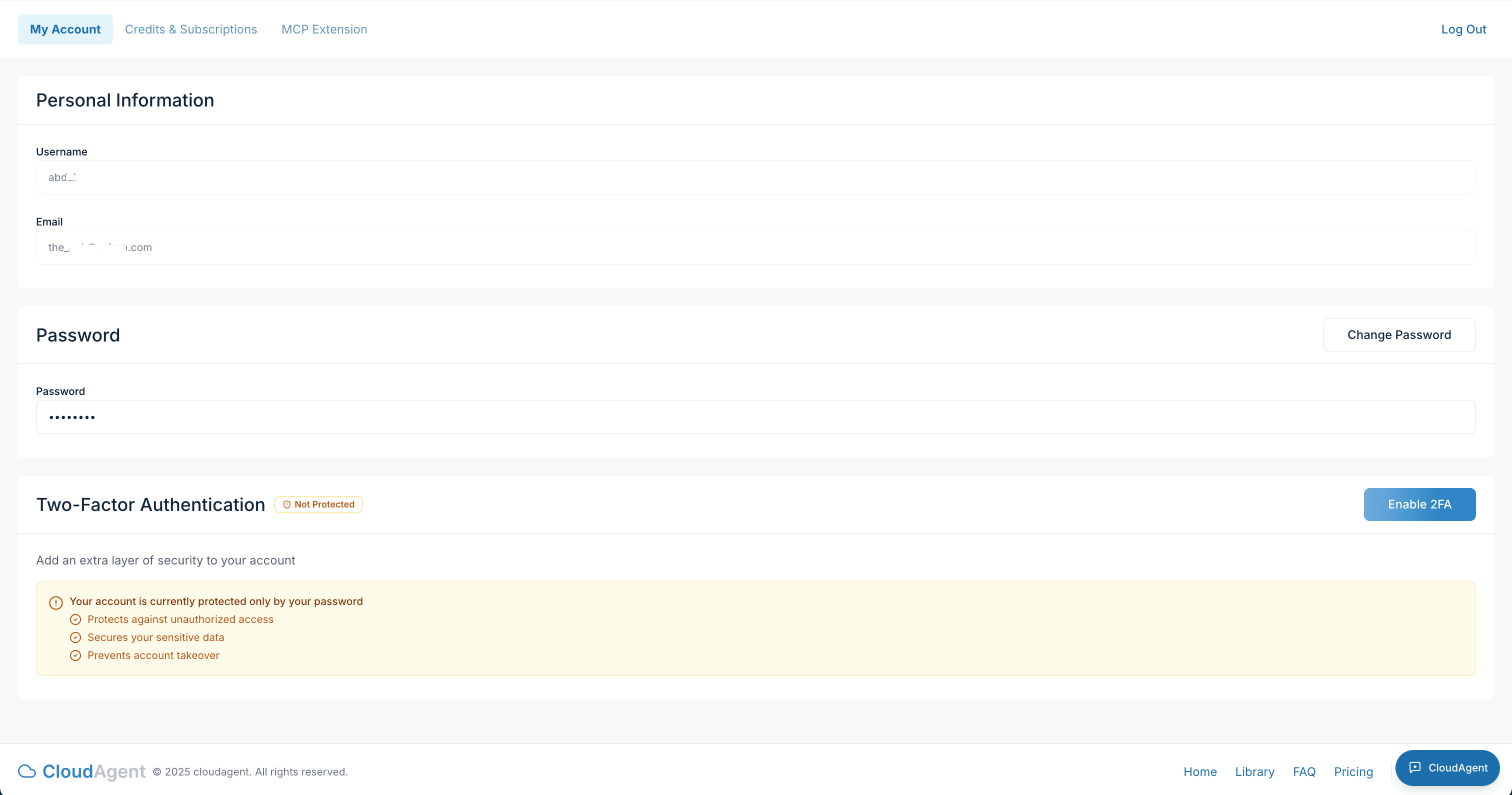
Personal Information
The Personal Information section displays your:
- Username: Your login identifier
- Email: The email address associated with your account
Password
To change your password:
- Navigate to My Account.
- In the Password section, click Change Password.
- Enter your current password and your new password.
- Click Save to update.
Two-Factor Authentication
Add an extra layer of security to your account by enabling 2FA.
- Navigate to My Account.
- Scroll to the Two-Factor Authentication section.
- Click Enable 2FA.
- Scan the QR code with your authenticator app (Google Authenticator, Authy, etc.).
- Enter the verification code to confirm setup.
Once enabled, you'll need to enter a code from your authenticator app each time you log in.
Credits and Subscriptions
CloudAgent uses a credit-based system to meter usage across the platform. Your current credit balance is always visible in the top navigation bar.
Click the Credits & Subscriptions tab to:
- View your balance: See your total available credits, including monthly subscription credits and any add-on credits
- Purchase additional credits: Buy credits on demand when you need more capacity
- Manage overages: Choose whether services pause when credits are depleted or auto-billing handles overages
- View your plan: See your current subscription tier and included monthly credits
Credits are consumed when CloudAgent performs actions on your behalf — running compliance reports, executing agent blueprints, processing workflows, and similar operations. The credit cost scales with the complexity and duration of each action.
Next Steps
- Permissions & Access Control — Manage your connected cloud accounts
- FAQ — Common questions about account management and billing