Cost Dashboard
Objective
Monitor and optimize your cloud spending with real-time cost analytics, forecasting, and actionable savings recommendations.
The Cost Dashboard consolidates data from multiple sources into a single view of your spending. For AWS accounts, it pulls from AWS Cost Explorer, Anomaly Detection, Compute Optimizer, Savings Plans, and Cost Optimization Hub. CloudAgent's own assessment engine also generates cost-related recommendations independently — so you'll see actionable findings even if some of those AWS services are not enabled in your account.
Accessing the Cost Dashboard
Navigate to Dashboards → Cost in the sidebar, or go directly to /dashboards/cost.
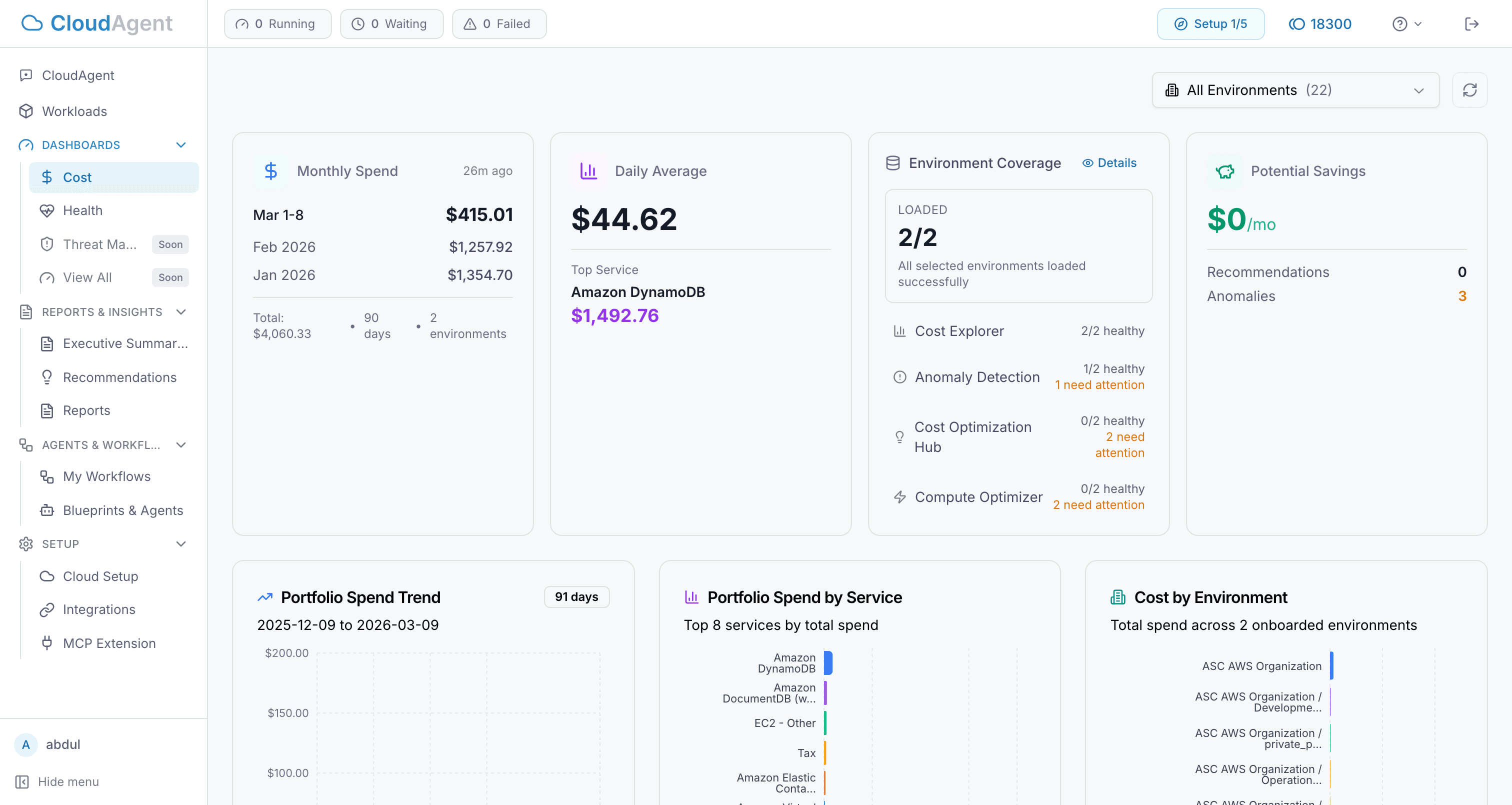
Cost data may take a few minutes to load after connecting a new AWS account. If the dashboard appears empty, click the Refresh button and ensure your connected role has the AWS managed ReadOnlyAccess policy — this covers all the permissions CloudAgent needs for cost data.
The Cost Dashboard works with AWS accounts connected through Cloud Environments. The dashboard pulls data from several AWS services — the more you have enabled, the richer the data:
| Data Source | Description | What Happens If Not Enabled |
|---|---|---|
| AWS Cost Explorer | Historical spend data and trends | Enabled by default on all AWS accounts. If spend charts appear empty, verify your IAM role permissions and click Refresh. |
| AWS Anomaly Detection | Unusual spending pattern alerts | The anomaly section will not appear. You'll still see cost data from other sources. |
| AWS Compute Optimizer | EC2, RDS, and EBS rightsizing insights | Rightsizing recommendations will not be available. CloudAgent's own assessment engine may still surface cost findings independently. |
| AWS Cost Optimization Hub | Cross-service optimization opportunities | This section will not appear. Other recommendation sources still function normally. |
The dashboard displays status indicators for each data source so you can quickly see which services are active and which need to be enabled. Even without any AWS cost services configured, CloudAgent's built-in assessment engine can identify cost optimization opportunities through its own checks.
Key Metrics
The top of the dashboard displays summary cards with your most important cost data:
| Metric | Description |
|---|---|
| Monthly Spend | Total spend for the current and previous months with a trend comparison |
| Daily Average Spend | Average daily cost over the lookback period (default 90 days) |
| Total Period Spend | Aggregated spending across the entire analysis window |
| Spend Trend | Percentage change comparing the first half vs. second half of the period |
| Estimated Savings | Total potential monthly savings from all recommendation types |
Understanding Your Cost Data
Spend Over Time
The daily spend trend chart shows your spending as an area chart over the lookback period. Hover over any point to see the exact daily amount. This view helps you spot gradual increases, seasonal patterns, or sudden spikes.
Spend by Service
A horizontal bar chart breaks down your top 8 cloud services by total spend, sorted from highest to lowest. For AWS accounts, common leaders include EC2, RDS, S3, and Lambda. Use this to identify which services drive the most cost.
Spend by Linked Account
For organizations with multiple cloud accounts, the vertical bar chart shows cost distribution across up to 10 linked accounts. This is particularly useful for chargeback, cost allocation, and identifying accounts with unexpected growth.
Filtering and Controls
You can adjust the dashboard view using these controls:
- Environment Selector: Choose which cloud account or permission profile to analyze. If you have multiple accounts connected, switch between them here.
- Refresh: Force a fresh data pull from your cloud provider's APIs. The dashboard caches data to reduce API calls, so use this when you need the latest numbers.
- Lookback Period: The default analysis window is 90 days. This determines how far back the trend chart and calculations extend.
Cost analysis runs as an asynchronous scanner task. After you click Refresh, CloudAgent stores the generated cost artifact and the dashboard loads that stored result. If the artifact is still being created, the dashboard may show a pending state until the scan completes.
Anomaly Detection
When AWS Cost Anomaly Detection is configured in your account, the dashboard surfaces unusual spending patterns automatically. Each anomaly shows:
- The AWS service where the anomaly occurred
- The date range of the unusual activity
- Expected spend vs. actual spend
- The overspend impact amount
- A confidence score
If you haven't enabled AWS Cost Anomaly Detection, this section will not appear. To enable it, set up Cost Anomaly Detection monitors in the AWS Billing & Cost Management console. Once configured, anomalies will surface here automatically on your next dashboard refresh.
Clicking an anomaly opens a direct link to the AWS Cost Anomaly Detection console for deeper investigation.
Savings Recommendations
The Cost Dashboard aggregates optimization recommendations from multiple sources. For AWS accounts, these include three native AWS services plus CloudAgent's own assessment engine. If a particular AWS service is not enabled, that section simply won't appear — the remaining sources continue to function normally.
Rightsizing Recommendations
Sourced from AWS Compute Optimizer, these suggest changes to your EC2 instances, RDS databases, and EBS volumes. If Compute Optimizer is not enabled in your account, this section will not appear — enable it in the AWS console to get rightsizing insights.
| Column | Description |
|---|---|
| Resource ID | The specific instance or volume to modify |
| Current Type | Your current instance type or configuration |
| Recommended Type | The suggested target configuration |
| Monthly Savings | Estimated cost reduction per month |
| Action | Modify, Terminate, or Migrate |
Savings Plans Recommendations
Based on your usage patterns, AWS recommends commitment-based discounts:
| Column | Description |
|---|---|
| Plan Type | Compute Savings Plan, EC2 Instance, or SageMaker |
| Term | 1-year or 3-year commitment |
| Payment Option | All Upfront, Partial Upfront, or No Upfront |
| Hourly Commitment | Dollar amount per hour to purchase |
| Monthly Savings | Estimated savings after commitment |
Cost Optimization Hub
Additional cross-service recommendations that combine insights from multiple AWS optimization tools into unified suggestions.
Taking Action on Cost Findings
Once you identify cost optimization opportunities:
- Review the specific recommendations in the dashboard
- Navigate to Recommendations for a prioritized action list across all categories
- Create a remediation workflow to automate the fix — see My Workflows for scheduling automated responses
- Re-run the cost analysis after implementing changes to verify savings
Tip: Create a scheduled workflow to generate weekly cost reports and email them to your finance team automatically.
Troubleshooting
Cost data appears delayed: AWS Cost Explorer data typically updates once per day. If you connected a new account, allow 24-48 hours for historical data to populate.
Missing cost data for an account: Verify the permission profile is validated on the Cloud Setup page — the AWS managed ReadOnlyAccess policy covers all the permissions CloudAgent needs for cost data. Also try clicking Refresh to force a fresh data pull.
Cost analysis is not ready yet: A new cost scan may still be running. Wait a few minutes, then refresh the dashboard or rerun the analysis for the selected environment.
No recommendations showing: AWS services like Compute Optimizer and Cost Optimization Hub need 14+ days of usage data before generating recommendations. If you haven't enabled these services yet, only CloudAgent's own assessment engine recommendations will appear.
Anomalies section not visible: This section only appears when AWS Cost Anomaly Detection is both configured in your account and has detected anomalies. If you haven't set up Cost Anomaly Detection monitors yet, enable them in the AWS Billing console.
Next Steps
- Artifact Analysis — Understand how stored cost artifacts and pending states work
- Recommendations — View and act on prioritized optimization findings
- My Workflows — Schedule automated cost reports and remediation
- Reports — Generate formal compliance and cost reports for stakeholders