Command Center
Objective
Use Command Center to work with CloudAgent conversationally while keeping live product context in scope. Command Center is where you combine environments, workloads, reports, recommendations, and executive summaries into one guided operating surface.
Accessing Command Center
Navigate to Command Center in the sidebar, or go directly to /dashboard/cloudagent.
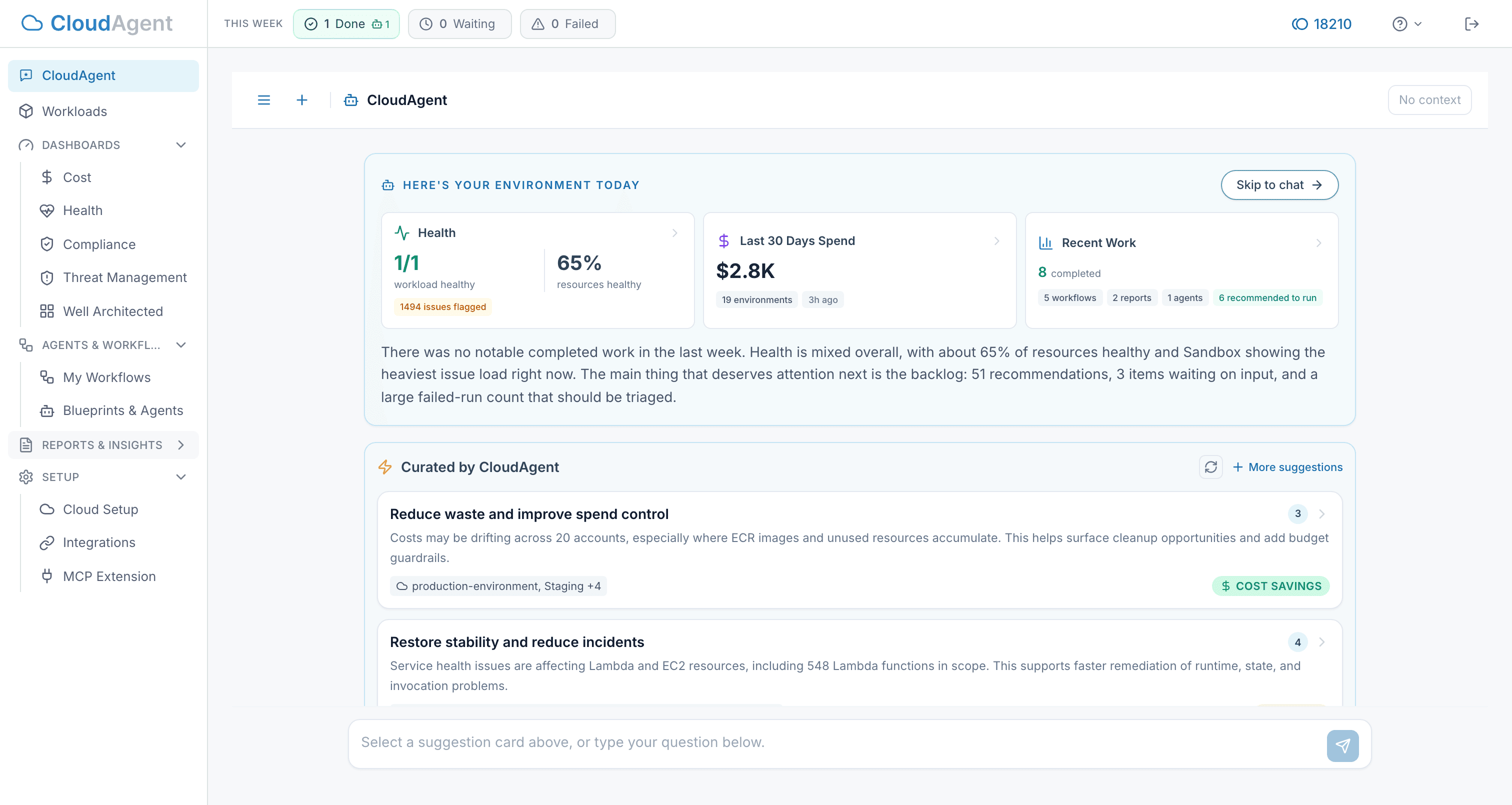
Command Center supports two main paths:
| Path | Use It For |
|---|---|
| Recommended By CloudAgent | Start from personalized recommendation cards and guided next actions |
| Type a question or task | Ask for infrastructure help, investigation, review, or action in your own words |
Scope and Context
Before sending a prompt, you can add product context so CloudAgent works against the right objects.
Supported scope types include:
| Scope Type | Typical Use |
|---|---|
| Environments | Review health, cost, security posture, and account-level findings |
| Workloads | Focus on one application or stack and the resources tied to it |
| Reports | Ground the conversation in an existing compliance or analysis report |
Command Center enforces scope limits so the conversation stays focused. If too much is selected, narrow the scope before continuing.
What You Can Review Inline
Command Center can load and preview several product artifacts without forcing you to navigate away first:
- recommendations and suggested follow-up actions
- report previews and summaries
- executive summary previews for environments and workloads
- health findings and resource-level issues
- cost analysis results and optimization signals
This is especially useful when a user needs to compare multiple sources before deciding whether to run a blueprint, start a workflow, or request approval.
Working from Recommendations
When you open Command Center from a recommendation or choose Recommended By CloudAgent, the experience is tuned for triage:
- review the recommendation and its priority
- inspect affected resources or supporting context
- preview linked reports or executive summaries when available
- decide whether to dismiss, investigate further, or remediate
Some recommendations open directly into a remediation or blueprint flow. Others are better handled as a question to Command Center with the relevant environment or workload already in scope.
Report and Executive Summary Previews
Command Center can preview:
- report summaries
- executive summaries for environments
- executive summaries for workloads
Use report previews when you need evidence from a specific scan or compliance result. Use executive summary previews when you need a faster roll-up for stakeholder communication or decision support.
Waiting on User and Approval States
Command Center also surfaces long-running and human-in-the-loop states. Common examples include:
- a workflow or blueprint is waiting for approval
- a background scan is still processing
- a report or summary has not finished loading
- a follow-up question is required before a state-changing action can proceed
If a task is paused for approval, review the proposed action and supporting context before continuing. This is the right place to stop an automated flow before it changes production infrastructure.
Command Center is strongest when you add only the environments, workloads, and reports needed for the decision at hand. Treat it as an operating surface, not a catch-all chat window.
Common Use Cases
Investigate an environment
Add one environment to scope, review health or cost context, and ask CloudAgent to summarize current issues and next actions.
Review a workload before remediation
Add the workload and any related report, then ask CloudAgent to explain the current findings, likely impact, and safest remediation path.
Prepare for an approval decision
Open the waiting task, inspect the recommendation, report preview, or executive summary, then decide whether to continue, pause, or cancel.
Troubleshooting
Context feels incomplete: Add the workload, environment, or report explicitly instead of relying on a generic question.
A report preview is missing: Confirm the report has completed and that it is in the current scope.
An executive summary does not appear: Generate or refresh the executive summary first, then reopen the preview.
A task is still pending: The backing workflow, report, or scanner may still be running. Wait for the product artifact to finish and refresh the page.
Next Steps
- Executive Summaries — Understand environment and workload summaries used in Command Center
- Recommendations — Review the recommendation flows that often start Command Center sessions
- My Workflows — Automate the follow-up actions you commonly take after review