Managing Workloads
Objective
View, manage, and optimize your deployed applications and infrastructure stacks.
The Cloud Setup & Workloads section allows you to view and manage your cloud infrastructure and applications.
Viewing Workloads
To view your workloads:
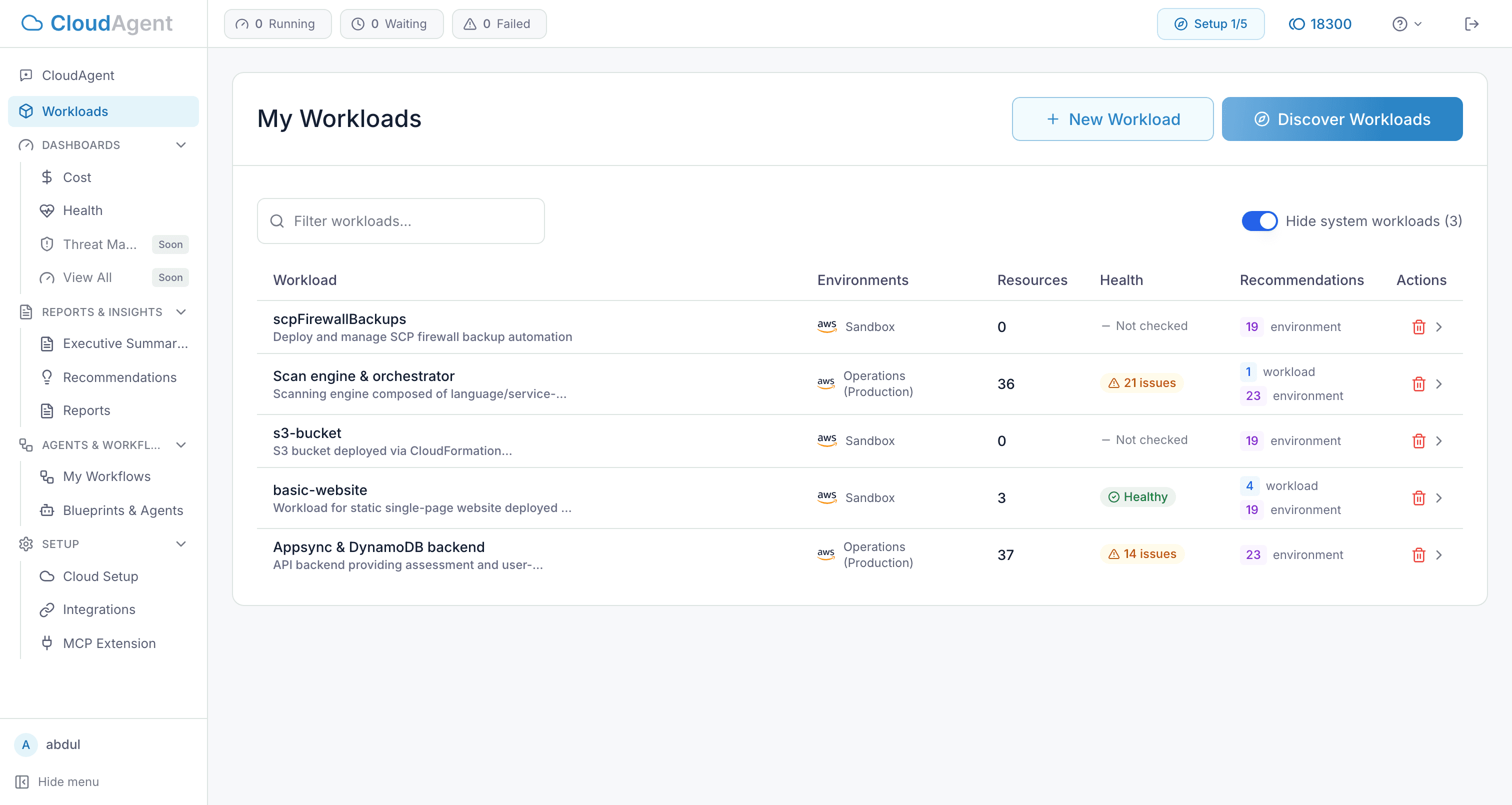
- Navigate to Cloud Setup & Workloads in the sidebar.
- You will see a list of all connected cloud environments and deployed workloads.
Workload Details
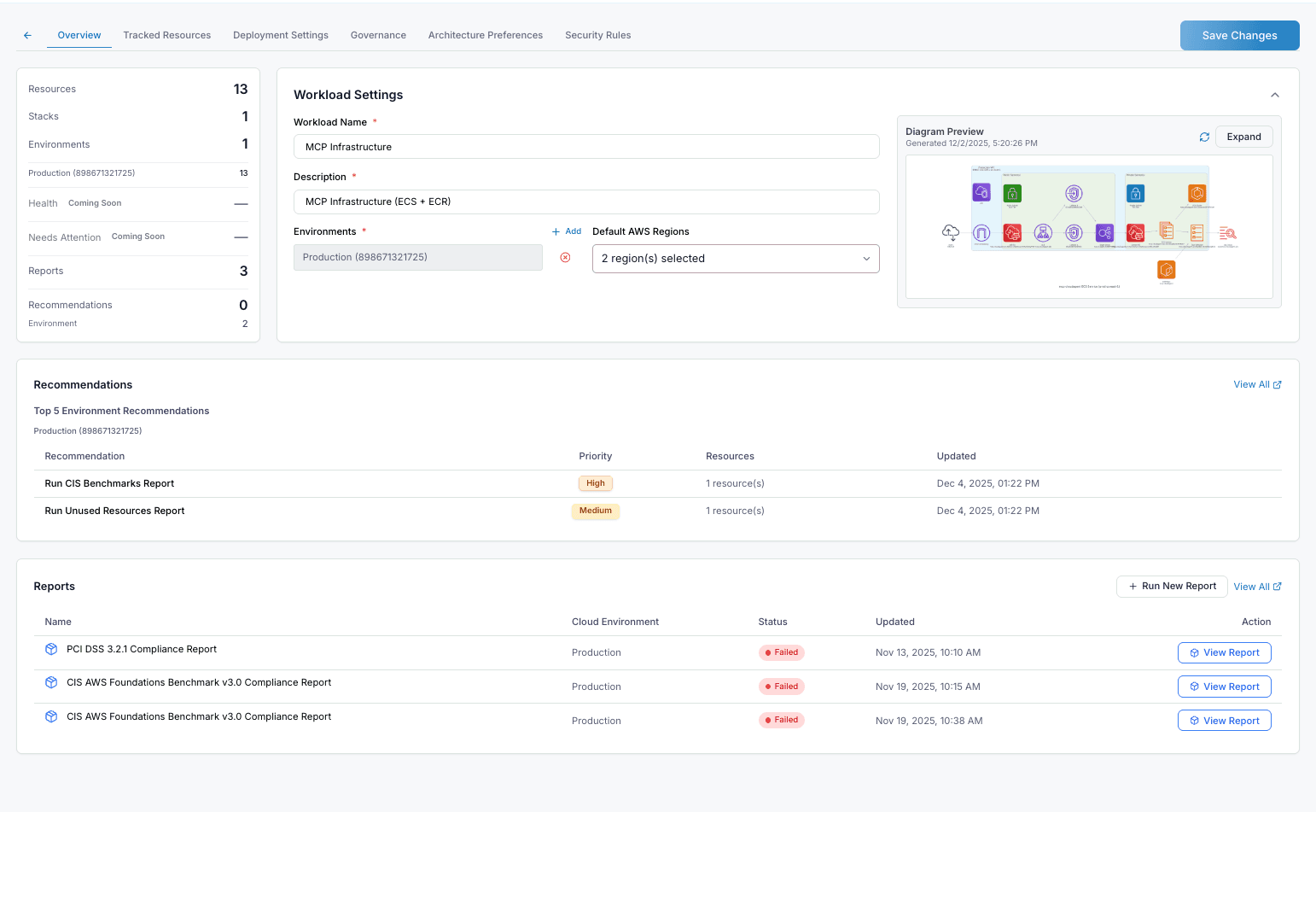
Click on any workload in the list to view its details. The details view provides comprehensive information about the workload's status, resources, and configuration.
Key Tabs
- Overview: General information about the workload, including the Diagram Preview.
- Tracked Resources: A list of all cloud resources (e.g., S3 buckets, IAM roles, CloudFormation stacks) associated with this workload.
- Deployment Settings: Configuration options for how the workload is deployed.
- Governance: Policies and rules applied to the workload.
- Architecture Preferences: Settings related to the architectural design of the workload.
- Security Rules: Security configurations and firewall rules.
The workload detail view is where CloudAgent ties together topology, tracked resources, recommendations, reports, and environment context. It is the main place to understand what the workload contains and which cloud environments back it.
Diagram Preview
The Diagram Preview panel provides a visual representation of your workload's architecture. It displays all the AWS resources and their relationships in an easy-to-understand diagram.
- Auto-Generated: The diagram is automatically generated based on tracked resources.
- Expandable View: Click the Expand button to open a full-screen view for detailed inspection.
- Resource Icons: Each AWS service (Lambda, S3, DynamoDB, etc.) is represented with its official icon.
- Timestamps: Shows when the diagram was last generated.
Tip: Use the expanded diagram view during architecture reviews or when onboarding new team members to quickly understand the infrastructure layout.
Because the diagram is generated from tracked resources, it becomes more useful as workload discovery improves. If the diagram looks incomplete, review the tracked resources list first.
Resource Environment Context
Tracked resources can include the AWS account ID and permission profile that owns the resource. This helps CloudAgent connect workload resources back to the right environment for health checks, cost context, recommendations, reports, and workflows.
When CloudAgent discovers resources from CloudFormation stacks, it keeps stack-derived resources linked to the selected environment. This is especially important for workloads that span multiple accounts or regions.
Tracked Resources
Tracked resources are the foundation for workload-level analysis. This table is where CloudAgent decides which resources belong to the workload for:
- health checks
- recommendations
- architecture diagrams
- reports
- workflow targeting
Tracked resources can include compute, storage, networking, IAM, database, and CloudFormation-managed resources. If a resource is missing here, it will usually be missing from downstream health, recommendation, and diagram views too.
Recommendations and Reports
The workload details page also includes:
- Top 5 Environment Recommendations: Priority-ranked suggestions specific to this workload's environment.
- Reports: Compliance reports (PCI DSS, CIS Benchmarks) with status indicators and quick access to view details.
The reports table shows workload-relevant scans by environment, status, and update time. Use Run New Report to start a fresh report from the library, or View Report to open an existing completed result.
Recommendations in Workloads
The workload details page can show both:
- Workload recommendations tied directly to tracked workload resources
- Top 5 environment recommendations inherited from the backing cloud environment
Use workload recommendations when you want findings tightly scoped to the application or stack. Use environment recommendations when the issue is broader and affects the account, region, or shared platform around the workload.
Each recommendation row includes:
| Field | Description |
|---|---|
| Recommendation | The finding title or suggested improvement |
| Priority | Critical, High, Medium, or Low |
| Resources | How many resources are affected |
| Updated | When the finding was last refreshed |
| Remediation | Direct action into the recommendation flow or blueprint run |
Multi-Environment Workloads
A workload can span multiple environments, accounts, or regions. In that model:
- tracked resources remain linked back to their source environment
- health and cost context can be reviewed by environment and by workload
- reports may be run against one or more workload environments
- workflows can use the workload as an organizing layer while still executing per environment
This separation matters when a workload contains shared services, regional replicas, or production and non-production environments under one application boundary.
Common Troubleshooting
A workload has no recommendations: Confirm the tracked resources list is populated and the backing environment has current recommendation or scanner data.
A workload report table is empty: Reports appear after they are run for the workload's environments. Use Run New Report from the workload page or the main reports library.
The diagram is missing services: Review tracked resources and CloudFormation-linked discovery first. The diagram only reflects what CloudAgent currently associates with the workload.
The wrong account context is shown: Check the permission profile and environment linkage for the workload resources. Multi-account workloads depend on correct environment association.
Next Steps
- Security Rules & Baselines — Configure compliance rules for your workloads
- Governance & Architecture — Set deployment controls and architecture preferences
- Artifact Analysis — Understand how workload reports and findings are generated from stored artifacts
- Recommendations — View findings across your workloads