Permissions & Access Control
How CloudAgent Accesses Your Cloud
CloudAgent is a multi-cloud platform that connects to your cloud accounts — including AWS, Azure, and Google Workspace — through provider-specific authentication methods. Each connected account is represented as a permission profile (also called a cloud environment). You can connect multiple accounts across different providers and manage them all from a single place.
This page covers the general permission model. For provider-specific onboarding steps, see Account Onboarding (AWS) and Azure Onboarding.
AWS IAM Role Setup
When you connect an AWS account, CloudAgent generates a CloudFormation template that creates an IAM role in your account. The setup involves three components:
| Component | Description |
|---|---|
| IAM Role Name | A dedicated role (e.g., CloudAgentRole) created in your account |
| External ID | A unique identifier that prevents unauthorized access — only requests with this ID can assume the role |
| Trust Policy | Allows CloudAgent's service account to assume the role in your account |
At minimum, the role uses the AWS managed ReadOnlyAccess policy. This is enough to power dashboards, reports, recommendations, and health checks — no additional per-service permissions are required to get started.
Health, cost, inventory, and threat analysis run through background scanner tasks. For AWS, ReadOnlyAccess includes the read APIs CloudAgent needs for Cost Explorer, CloudWatch metrics and logs, CloudFormation stack and drift status, and supported database health checks.
Deployment Options
You can deploy the IAM role using:
- One-Click CloudFormation: Launch the stack directly from CloudAgent's setup wizard — the template is pre-configured with your role name and external ID
- Download Template: Download the CloudFormation JSON/YAML to deploy through your own AWS console or CI/CD pipeline
- Terraform: Generate a Terraform configuration instead of CloudFormation
The External ID is a critical security feature. It prevents the "confused deputy" problem where an unauthorized party could assume the role. Never share your External ID publicly.
Built-in Security Restrictions
Every IAM role created by CloudAgent includes automatic restrictions regardless of the permission level you choose:
- Data Access Restriction: Denies
secretsmanager:GetSecretValue,s3:GetObject, ands3:GetObjectVersion— CloudAgent can see your infrastructure configuration but cannot read your actual data or secrets - Temporary Access (optional): Time-limited role access that automatically expires after a configured duration
Permission Levels (AWS)
When connecting an AWS account, choose the access level that matches your needs:
| Level | AWS Managed Policy | What It Can Do | Best For |
|---|---|---|---|
| Read-Only | ReadOnlyAccess | View resources, generate reports, run compliance checks, health checks, cost analytics | Monitoring and auditing — most users start here |
| Limited Write | ReadOnlyAccess + selective write policies | Everything above, plus automated remediation of specific resource types | Teams adopting automated fixes |
| Full Admin | ReadOnlyAccess + broad write policies | Everything above, plus full blueprint deployment and infrastructure management | Full infrastructure automation |
Start with Read-Only. The AWS managed ReadOnlyAccess policy is all you need for dashboards, reports, recommendations, health checks, and cost analysis. You can upgrade later as you adopt deployment and remediation features.
Write-level access is only needed when you want CloudAgent to make changes in your account — for example, deploying a blueprint, running a remediation workflow, or enabling a security service like GuardDuty.
Managing Connected Accounts
Navigate to Settings > Cloud Environments to view and manage your permission profiles. This page shows all connected cloud accounts across providers (AWS, Azure, Google Workspace).
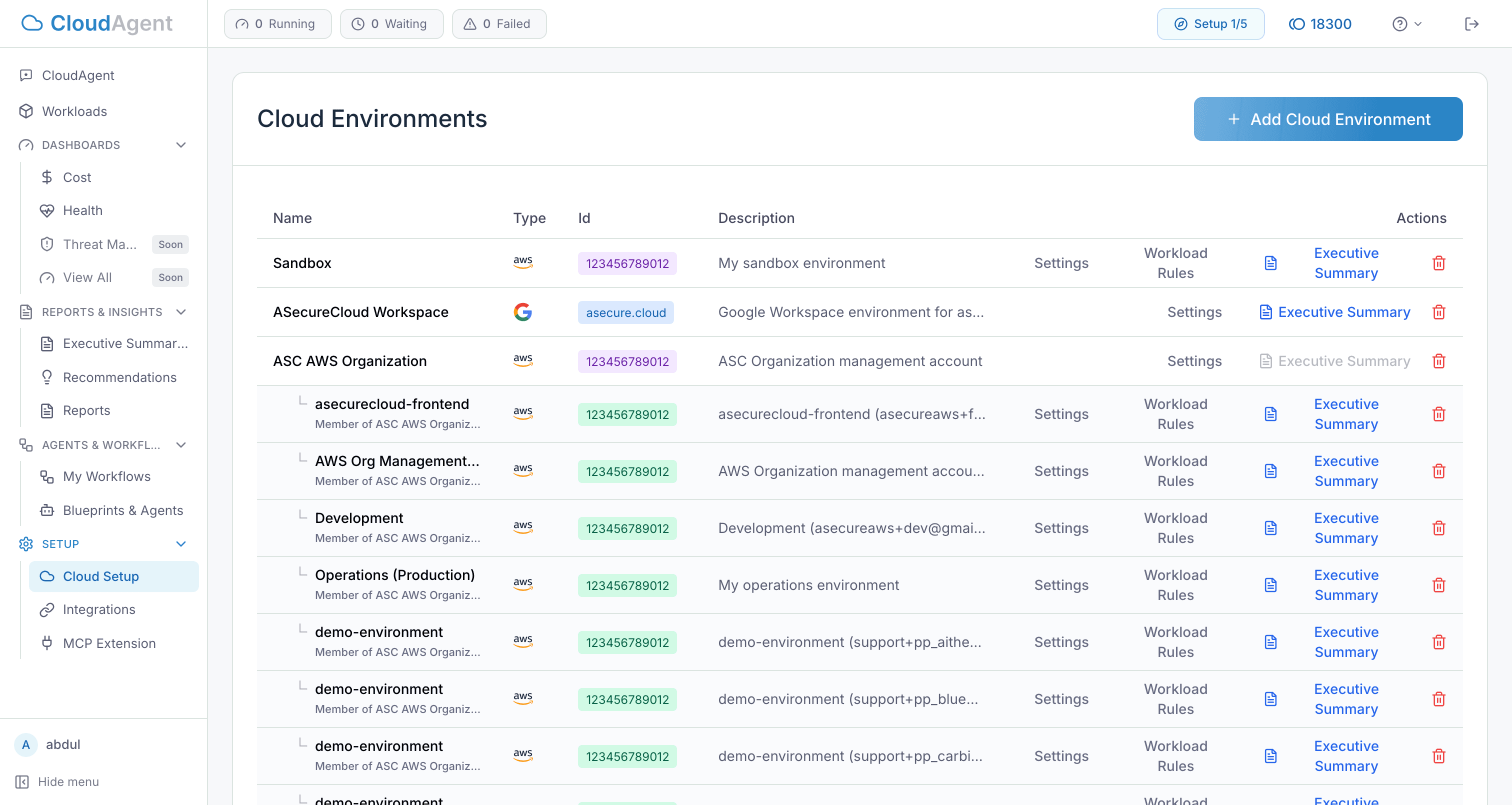
From this page you can:
- Add a new account: Click the add button to start the connection wizard for any supported provider
- Edit an existing profile: Update the account name, description, or reconnect with different permissions
- Delete a profile: Remove an account connection (this does not affect the role or resources in your cloud account)
- View security rules: See which security baselines are applied to this environment
Connecting a New AWS Account
The connection wizard walks you through three steps:
Step 1: Account Details
Enter your AWS Account ID and select a permission level. Give the environment a descriptive name (e.g., "Production - us-east-1" or "Sandbox Account").
Step 2: Deploy the IAM Role
Choose your deployment method (CloudFormation one-click, download template, or Terraform) and deploy the role to your AWS account. The wizard shows the exact role name and External ID that will be configured.
Step 3: Validate Credentials
After deploying the IAM role, click Validate to confirm CloudAgent can successfully assume the role. Validation checks that:
- The role exists with the correct name
- The External ID matches
- The trust policy allows CloudAgent's service account
- The permission level grants the expected access
Once validated, the account appears in your cloud environments and is available for use across all CloudAgent features.
Authentication Methods
CloudAgent supports two authentication approaches:
| Method | How It Works | Recommended? |
|---|---|---|
| IAM Role (STS AssumeRole) | CloudAgent assumes a role in your account using STS with an External ID | Yes |
| IAM User Credentials | Access key and secret key for a dedicated IAM user | Legacy only |
IAM roles are strongly recommended because they don't require long-lived credentials, support automatic rotation, and provide better auditability through CloudTrail.
Multi-Account and Multi-Cloud Management
CloudAgent supports connecting multiple cloud accounts — across AWS, Azure, and other providers — under a single user profile. Each account operates as an independent permission profile with its own:
- Permission level and IAM role
- Security rules and baselines
- Deployment preferences
- Architecture preferences
When using features like the Cost Dashboard, Health Dashboard, or Reports, you select which environment (account) to analyze. Workloads can span multiple environments by selecting multiple accounts during workload configuration.
Credential Rotation
Since CloudAgent uses IAM role assumption (not stored credentials), credential rotation is handled automatically by AWS STS. Temporary session credentials are generated on each API call and expire after a short duration.
If you need to update the IAM role:
- Modify the CloudFormation stack or IAM role directly in your AWS account
- Return to CloudAgent's Cloud Environments page
- Click Edit on the permission profile
- Click Validate to confirm the updated role works correctly
Troubleshooting
Validation fails after deploying the IAM role: Verify that the CloudFormation stack completed successfully in your AWS account. Check that the role name and External ID match exactly what CloudAgent's wizard specified.
"Access Denied" errors during scans or reports: This usually means the IAM role is missing or misconfigured. The AWS managed ReadOnlyAccess policy covers all read operations CloudAgent needs. If you see access errors on write operations (remediation, deployment), upgrade to Limited Write or Full Admin.
Scanner result is pending: Background scanner tasks may take a few minutes to write health, cost, inventory, or threat artifacts. Refresh the dashboard or report after the task completes.
Cannot see resources from a connected account: Ensure the permission profile is validated (green checkmark) in Cloud Environments. If the checkmark is missing, click Edit and re-run the validation step.
Multiple accounts showing the same data: Each permission profile should point to a different AWS Account ID. Check your Cloud Environments list to ensure accounts aren't duplicated.
Next Steps
- Account Onboarding — Step-by-step guide for your first AWS account connection
- Artifact Analysis — Understand how scanner tasks produce health, cost, inventory, and threat artifacts
- Security Rules & Baselines — Configure compliance rules for connected accounts
- Governance & Architecture — Set up deployment controls and architecture preferences
- Managing Workloads — Create workloads that span your connected accounts