Health Dashboard
Objective
Monitor the operational health of your cloud resources across all workloads and environments from a single dashboard. Currently, health checks are available for AWS resources.
The Health Dashboard aggregates health check results from your tracked resources and cloud environments, giving you a real-time view of what's healthy, what has issues, and what hasn't been checked yet.
Accessing the Health Dashboard
Navigate to Health Dashboard in the sidebar, or go directly to /dashboard/health.
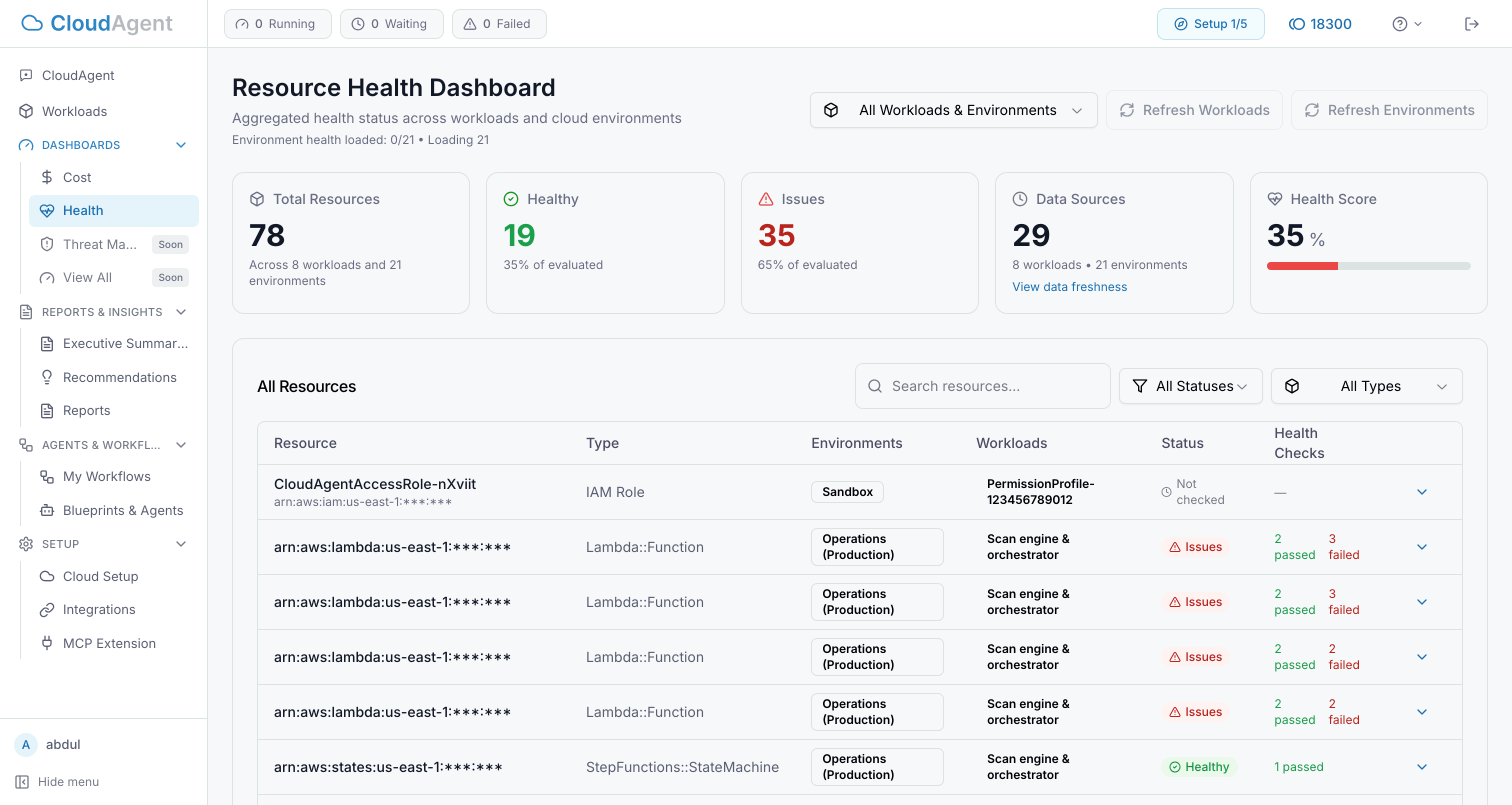
Key Health Metrics
The top of the dashboard displays summary cards:
| Metric | Description |
|---|---|
| Health Score | Percentage of evaluated resources that are healthy. Calculated as healthy / (healthy + unhealthy) × 100% |
| Total Resources | Count of all resources being monitored across workloads and environments |
| Healthy | Resources where all health checks passed |
| Issues | Resources with one or more failed health checks |
| Data Sources | Number of workloads and cloud environments providing health data |
The Health Score uses color-coded indicators: green when 80% or above, amber between 50-79%, and red below 50%. Resources that haven't been checked yet are excluded from the score calculation.
Understanding Health Statuses
Each resource is assigned one of four statuses:
| Status | Meaning |
|---|---|
| Healthy | All health checks passed — the resource is operating as expected |
| Issues | One or more health checks failed — investigation or remediation needed |
| Not Checked | The resource has never been evaluated — run a health check to assess it |
| Skipped | The resource type is not supported for health checks or the check is not applicable |
Resource-Level Health Details
Click any resource in the table to expand its details. Each resource shows:
- Resource identity: Name, type (e.g.,
AWS::ECS::Service), ARN, region, and account ID - Associated workloads: Which workloads track this resource, with links to workload details
- Individual health checks: A breakdown of each check that was run, including:
- Check name and category (availability, errors, configuration, capacity, runtime-eol)
- Pass or fail status
- Summary explanation of the result
- Detailed metrics (expandable)
- Timestamp of when the check was last evaluated
Health checks cover multiple categories: availability (is the resource running?), errors (are there failures in logs?), configuration (is the setup correct?), capacity (is the resource under pressure?), and runtime lifecycle.
Health Check Coverage
CloudAgent health checks include common AWS compute, storage, database, and delivery services. Coverage continues to expand, and unsupported resource types appear as Skipped instead of reducing the health score.
Recent AWS coverage includes:
| Area | Examples of Checks |
|---|---|
| CloudFormation | Failed stack status, recent failed stack events, stack drift status |
| RDS | DB instance and cluster status, free storage headroom, replica lag, deadlocks, exported log errors |
| Amazon DocumentDB | Cluster and instance status, global replication lag, connection headroom, low-memory throttling, replica status, exported log errors |
| Amazon Neptune | Cluster and instance status, global replication lag, main request queue pressure, replica status, exported log errors |
CloudFormation drift checks reuse a drift result from the last 24 hours when one is available. If no recent result exists, CloudAgent starts drift detection and reports the final status when the AWS drift operation completes.
Filtering Resources
Use the filter controls to narrow down the resource list:
- Search: Filter by resource name, type, ARN, resource ID, workload name, or environment name
- Status filter: Show only Healthy, Issues, Not Checked, or Skipped resources
- Workload filter: Limit the view to resources belonging to a specific workload
Running Health Checks
To refresh health data, click the Refresh button and choose between refreshing workload resources or environment resources. Before the check runs, you can configure:
Lookback Period
Choose how far back to analyze CloudWatch metrics and alarms: 1, 3, 7 (default), 14, 30, or 60 days. A longer lookback catches intermittent issues but takes more time to process.
CloudWatch Log Checks
When enabled, CloudAgent searches CloudWatch logs for error keywords like "error", "fail", and "exception". This is off by default because it can increase AWS API costs for workloads with large log volumes.
Force Refresh
When enabled (the default), a fresh report is generated regardless of cache. When disabled, the most recent report is reused if it was generated within the last 24 hours.
Enabling CloudWatch Log Checks on workloads with high log volume may increase your AWS API costs. Use the lookback period to limit the scope.
Data Freshness
Click the data freshness indicator to see when each workload and environment was last checked. The modal shows:
- Last health check timestamp for each data source (displayed as relative time, e.g., "2h ago")
- Resource count per data source
- Individual refresh buttons for each workload or environment
- Bulk refresh option for all sources at once
Data is considered fresh if generated within the last 24 hours. Sources showing "Never checked" need an initial health check run.
Pending Results
Health analysis runs asynchronously. While a new scanner task is still writing its results, the dashboard may show a pending or not-ready state for the selected workload or environment. Refresh again after the scan completes to load the stored health artifact.
Taking Action on Health Issues
When the dashboard surfaces resources with issues:
- Click the resource to view its failed health checks and understand the root cause
- Navigate to Recommendations to see if CloudAgent has suggested a fix
- Create a remediation workflow to address the issue — either manually or through an automated blueprint
- Re-run the health check after remediation to confirm the fix
Troubleshooting
Health score seems low despite no critical issues: The score includes all evaluated resources. Check if non-critical resources (like dev/test environments) are pulling the score down. Use workload filters to see production health separately.
Resources showing "Not Checked": These resources haven't had health checks run yet. Click Refresh and select the appropriate workload or environment to evaluate them.
Health data not updating: Verify that the permission profile for the environment is validated and uses at least the AWS managed ReadOnlyAccess policy, which covers the CloudWatch permissions health checks require. Also check that force refresh is enabled if you're seeing stale data.
CloudFormation drift stays pending or unknown: Drift detection can take time in AWS and only runs for supported stack statuses. If another drift operation is already in progress, CloudAgent reuses the latest available stack drift status until the operation completes.
Checks showing "Skipped": Some resource types don't have health checks available yet. CloudAgent continuously expands its check coverage.
Next Steps
- Artifact Analysis — Understand how stored health artifacts and pending states work
- Recommendations — Act on health-related findings with prioritized remediation steps
- Managing Workloads — Configure which resources are tracked and monitored
- My Workflows — Schedule periodic health checks as automated workflows