My Workflows
Objective
Create, manage, and monitor automated workflows that execute recurring cloud operations.
My Workflows allows you to automate repetitive tasks, schedule operations, and create multi-step processes that run without manual intervention.
Accessing Workflows
Navigate to My Workflows in the sidebar to view and manage your automated tasks.
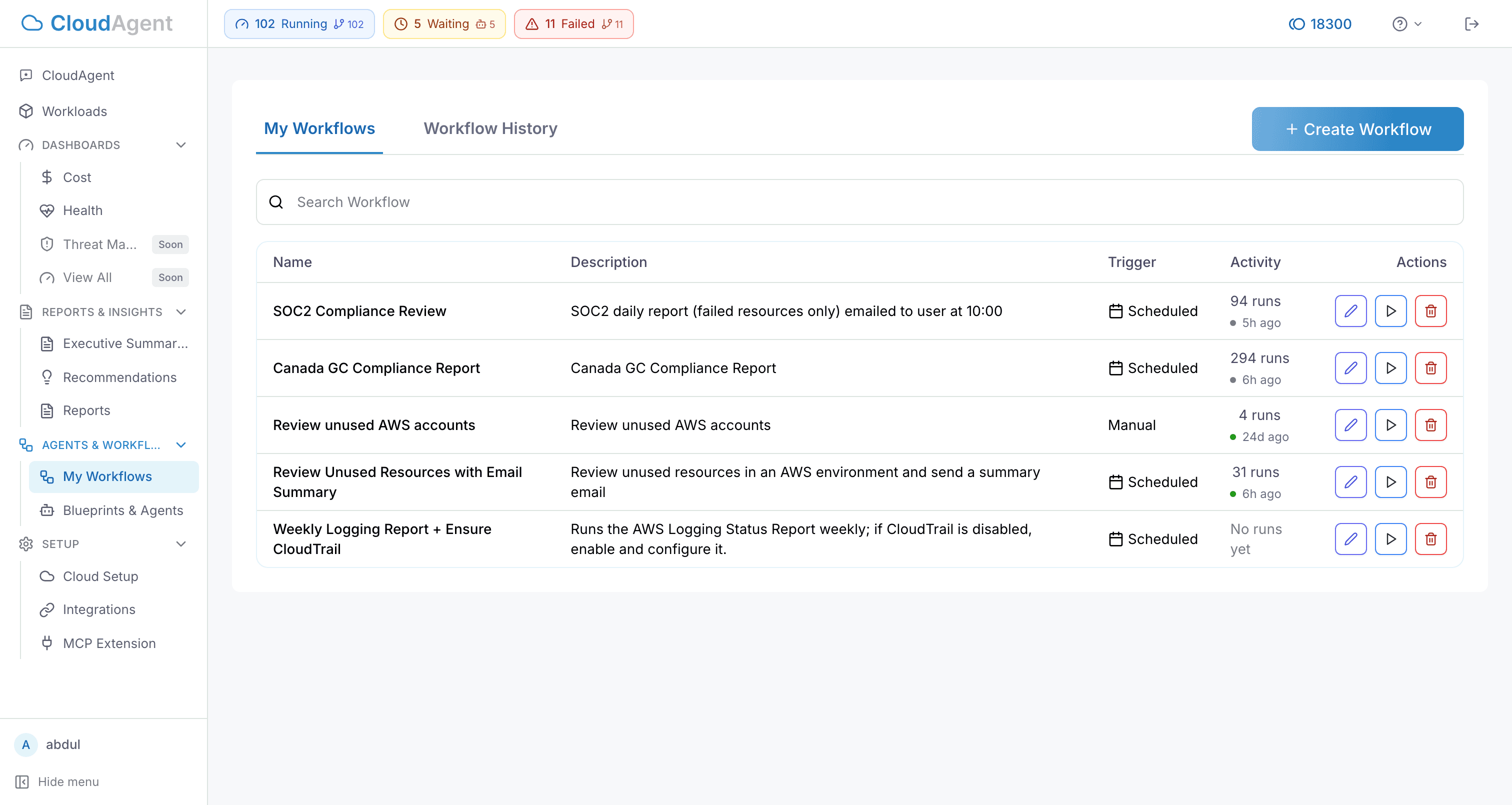
Understanding Workflows
A workflow is an automated sequence of actions that can:
- Run on a schedule (daily, weekly, monthly)
- Execute multiple steps in order
- Pause for human approval when needed
- Notify you of results
Workflow Types
Manual Workflows
Triggered on-demand when you need them:
- One-time cleanup operations
- Ad-hoc security scans
- On-demand backups
Scheduled Workflows
Run automatically at specified intervals:
- Daily backup verification
- Weekly compliance checks
- Monthly cost reports
Event-Driven Workflows
Triggered by specific conditions:
- New resource detection
- Security finding alerts
- Threshold breaches
Building a Workflow
CloudAgent workflows are built from connected nodes. A workflow can combine discovery, analysis, report generation, approvals, and remediation in one execution path.
Common Node Types
| Node Type | Purpose | Typical Use |
|---|---|---|
| Trigger | Starts the workflow manually or on a schedule | Weekly checks, monthly reports, on-demand runs |
cloudTask | Runs an infrastructure or cloud action against one or more environments | Enable a service, run a scan, gather context |
reportTask | Generates a report or analyzes existing stored artifacts | Compliance reports, cost summaries, health reviews |
| Approval / Decision | Pauses for review before continuing | Production changes, high-risk remediation |
| Notification / Follow-up | Sends results or continues with downstream actions | Notify a team, hand off to a blueprint, branch on outcome |
Creating a Workflow
- Navigate to My Workflows.
- Click + Create Workflow.
- Choose a template or start from scratch.
- Configure the workflow steps:
- Action: What the workflow should do
- Target: Which resources or environments
- Schedule: When it should run
- Notifications: Who to alert
- Click Save to create the workflow.
Templates: CloudAgent provides pre-built workflow templates for common operations like backup verification, security scanning, and cost optimization.
Workflow Status
| Status | Description |
|---|---|
| Active | Workflow is running on schedule |
| Paused | Temporarily disabled |
| Waiting on User | Requires your approval to continue |
| Completed | Finished execution successfully |
| Failed | Encountered an error |
| Running | Currently executing |
Managing Workflows
Pause a Workflow
Click the Pause button to temporarily stop a scheduled workflow without deleting it.
Resume a Workflow
Click Resume to reactivate a paused workflow.
Edit a Workflow
Click on the workflow name to modify its configuration, schedule, or steps.
Delete a Workflow
Remove workflows you no longer need from the workflow list.
Workflow Actions
Common actions available in workflows:
Infrastructure Operations
- Configure AWS Backup: Set up backup policies for DynamoDB tables
- Enable S3 Versioning: Turn on versioning for S3 buckets
- Update Security Groups: Modify firewall rules
Compliance and Security
- Run CIS Benchmarks Report: Generate compliance assessment
- Scan for Public Access: Check for publicly exposed resources
- Audit IAM Permissions: Review access policies
Cost Management
- Run Unused Resources Report: Find idle resources
- Check Reserved Instance Coverage: Optimize RI utilization
- Generate Cost Report: Create spending analysis
Artifact Analysis
- Analyze Existing Cost Data: Summarize spend trends from the latest cost artifact
- Analyze Health Findings: Group active health issues by service, region, severity, or workload
- Analyze Inventory: Count resources by service and region or identify risky resource concentrations
- Analyze Threat Findings: Summarize current threat findings and prioritize follow-up actions
Artifact analysis uses existing scanner results for cost, health, inventory, or threat data. Use it when you want a workflow to review data CloudAgent has already collected instead of running a new report blueprint first.
Report Tasks
CloudAgent supports two common report-task modes:
| Mode | What It Does | Use When |
|---|---|---|
run_report | Runs a report blueprint and waits for the new result | You need a fresh compliance, security, or inventory report |
analyze_existing | Reads a stored cost, health, inventory, or threat artifact and summarizes it | You want to review data CloudAgent already collected |
Use run_report when the workflow needs a new scan or formal report output. Use analyze_existing when the workflow should act on the latest available artifact without waiting for a new report blueprint to finish.
For more on how stored artifacts behave, see Artifact Analysis.
Multi-Environment Tasks
Workflow tasks can run against one environment or multiple selected environments. For multi-environment cloud and report tasks, CloudAgent controls how the next workflow step advances:
| Advance Mode | Behavior | Use When |
|---|---|---|
| Each | Downstream steps run separately as each environment finishes | You want per-environment branching, notifications, approvals, or follow-up actions |
| All | Downstream steps wait until every environment finishes | You want one combined summary, comparison, or decision after all environments complete |
For large environment selections, CloudAgent may split scanner work into multiple background tasks. The workflow still tracks the overall result and waits according to the selected advance mode.
This matters most when downstream steps depend on aggregated results. Use Each when a workflow should branch, notify, or request approval per environment. Use All when you need one roll-up view after every selected environment finishes.
Human-in-the-Loop
For sensitive operations, workflows can pause and wait for approval:
- Workflow reaches an approval step.
- You receive a notification.
- Review the proposed action in the dashboard.
- Click Continue to proceed or Cancel to stop.
Tip: Enable approval steps for any workflow that modifies production resources.
Approval steps are also useful for workflows that combine findings from multiple sources. A common pattern is:
- Analyze health, cost, or threat artifacts
- Generate a recommendation or report summary
- Pause for approval
- Run a remediation blueprint only after review
Viewing Workflow History
Click on any workflow to see:
- Execution History: Past runs with timestamps
- Step Details: What happened at each step
- Logs: Detailed output from each action
- Errors: Any issues encountered during execution
Execution history is where you confirm whether a workflow is:
- waiting for user approval
- still processing a background scan
- blocked on an environment-specific branch
- complete for some environments but still running for others
Integration with Blueprints
Workflows can execute blueprints as part of their steps:
- Create a blueprint for the desired infrastructure change.
- Add a "Run Blueprint" step to your workflow.
- The blueprint deploys automatically when the workflow runs.
When a blueprint step follows another workflow step, CloudAgent can pass concrete upstream context into the blueprint run, such as resource IDs, ARNs, regions, or investigation targets. This helps downstream blueprint runs act on the exact resources found earlier in the workflow.
Troubleshooting
A workflow is stuck in pending or running: Check whether the current step is waiting on a background scanner task to finish writing an artifact. Cost, health, inventory, and threat analysis can stay pending until the stored result is available.
Downstream steps are not starting: Confirm the selected advance mode. With all, downstream steps wait for every selected environment to finish.
A report task did not produce a new report: Make sure the task mode is correct. analyze_existing summarizes an existing artifact; it does not create a new report run.
A remediation step does not have the right resource context: Review the upstream step output and blueprint inputs. CloudAgent can pass resource IDs, ARNs, regions, and account context into later blueprint runs, but the blueprint still needs matching input fields or instructions.
Next Steps
- Blueprints & Agents — Create reusable infrastructure templates
- Reports — Generate compliance reports to use in workflows
- Artifact Analysis — Understand stored scan artifacts and pending states
- Recommendations — View findings that can trigger workflow actions