Executive Summaries
Objective
Generate concise, stakeholder-friendly summaries for cloud environments and workloads. Executive Summaries help teams understand current posture, key findings, and likely next actions without reading every underlying report.
Accessing Executive Summaries
Navigate to Executive Summaries in the sidebar, or go directly to /dashboard/executive-summaries.
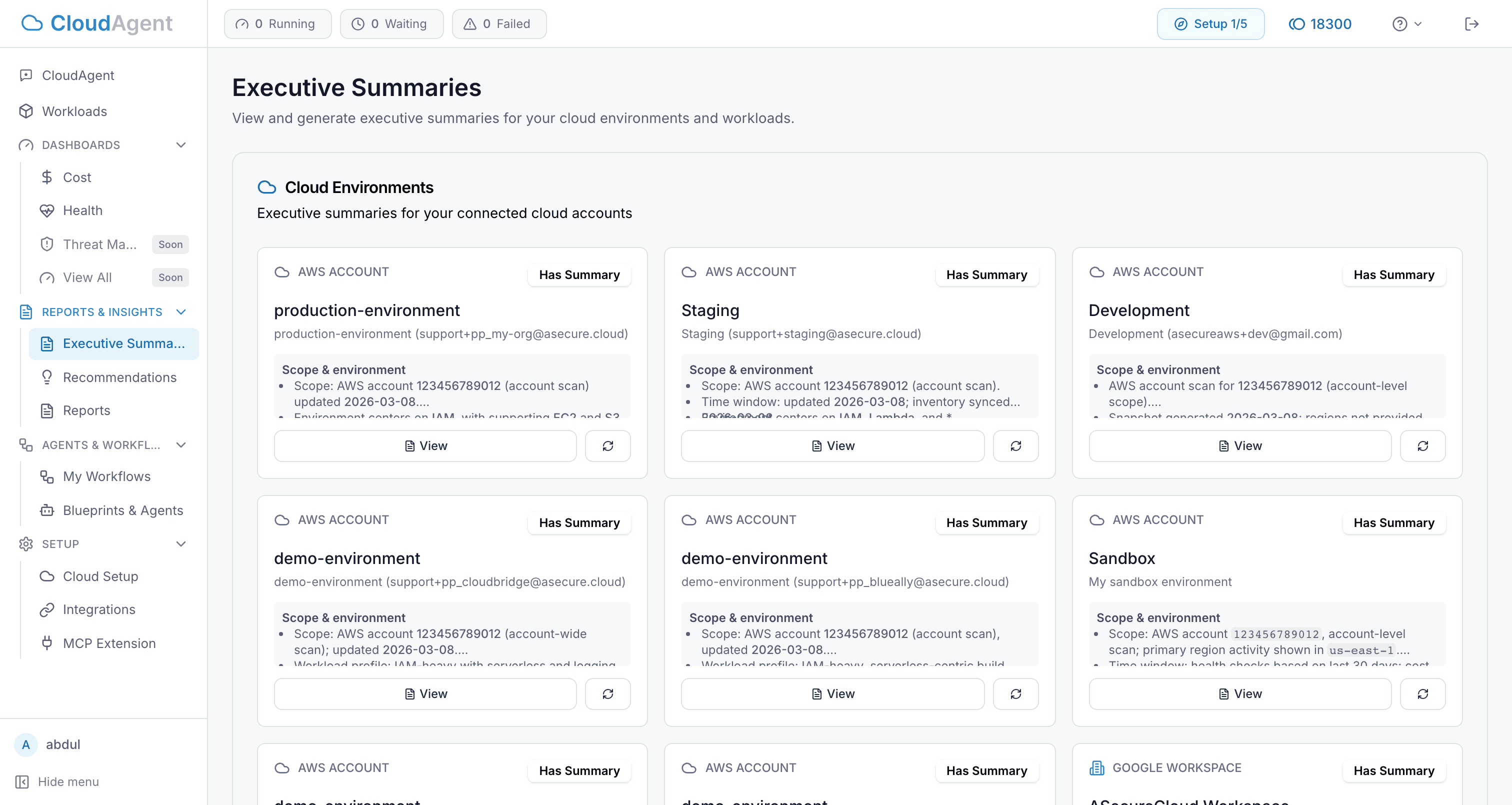
The page is split into two sections:
| Section | What It Covers |
|---|---|
| Cloud Environments | Account- or environment-level summaries |
| Workloads | Application- or stack-level summaries |
Environment vs Workload Summaries
Environment Summaries
Environment summaries are best when you want an account-level view across recommendations, reports, and scanner results tied to one connected cloud environment.
Use them for:
- account health reviews
- leadership updates by environment
- compliance and operations check-ins
- pre-change or pre-remediation context
Workload Summaries
Workload summaries focus on one application, platform, or stack and the resources CloudAgent tracks for it.
Use them for:
- service ownership reviews
- architecture and workload posture discussions
- release readiness or remediation planning
- sharing a concise status update with delivery teams
What Data Feeds a Summary
Executive summaries are generated from the data CloudAgent already has for the selected environment or workload. Depending on what is available, a summary can draw from:
- reports and report summaries
- recommendations
- health analysis
- cost analysis
- workload context and tracked resources
The exact depth of the summary depends on how much current product data exists. A well-scoped environment or workload with recent reports and findings will produce a stronger summary than one with little recent activity.
Viewing and Refreshing Summaries
Each card shows whether a summary already exists.
Typical actions:
- open the summary to review it in detail
- refresh the summary when the underlying product data changes
- drill into the workload or supporting report for deeper evidence
If a summary is missing, generate it from the page before using it in stakeholder communication.
Relationship to Reports and Recommendations
Executive summaries are not a replacement for reports or recommendations.
| Feature | Best For |
|---|---|
| Executive Summary | Fast briefing and decision support |
| Report | Detailed findings, framework mapping, and evidence |
| Recommendation | Actionable remediation or optimization items |
In practice:
- use a report when you need detailed controls or affected resources
- use recommendations when you need prioritized actions
- use an executive summary when you need the narrative roll-up
Using Executive Summaries from Command Center
Command Center can preview executive summaries for environments and workloads. This is useful when:
- a user asks for a quick current-state briefing
- a recommendation needs business context before remediation
- an approval decision needs a concise summary rather than a full report review
When used in Command Center, keep the scope tight so the preview reflects the right environment, workload, or report context.
Refresh an executive summary after major report runs, new recommendation cycles, or significant workload changes. Otherwise the summary may lag behind the current product state.
Troubleshooting
No summary is available: Generate one from the page first.
A summary feels outdated: Refresh it after new reports, findings, or workload changes.
A workload summary lacks detail: Check whether the workload has recent reports, recommendations, and tracked resources.
A summary mentions reports you cannot find: Open the underlying workload or reports page to inspect the supporting source data.
Next Steps
- Command Center — Use executive summaries as part of guided review and approval flows
- Reports — Inspect the underlying report evidence behind a summary
- Managing Workloads — Improve workload context so summaries stay useful